

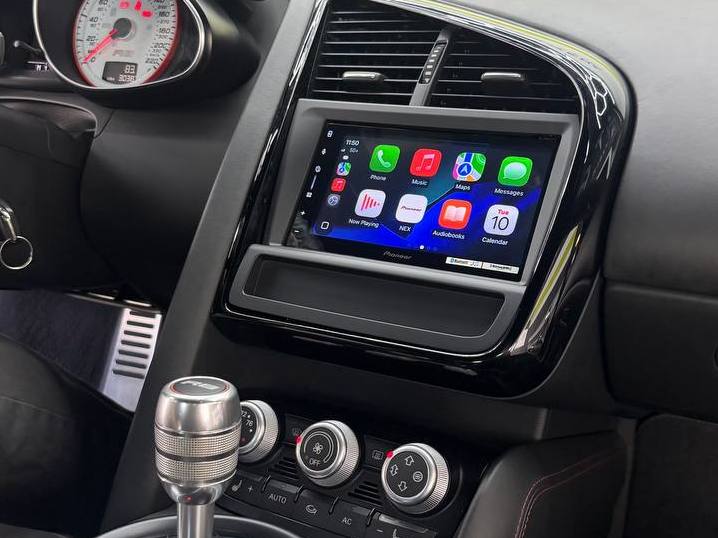
You’re cruising down the highway, your favorite playlist is queued up, and the navigation is guiding the way. Suddenly, the song stutters. Then, you notice the navigation map is lagging three seconds behind your actual turn. If you’ve ever felt the frustration of a “smart” car system acting decidedly dumb, you aren’t alone.
The transition from wired to wireless connectivity in our vehicles was supposed to be a revolution in convenience. No more fumbling with cables or worn-out USB ports. However, for many drivers, this convenience has come at a cost: perceptible input lag and a noticeable dip in audio fidelity.
Whether you are an iPhone devotee or an Android enthusiast, understanding the “why” behind these glitches is the first step to fixing them. In this comprehensive guide, we will dive deep into the technical architecture of wireless smartphone integration, compare how CarPlay and Android Auto handle data, and provide actionable solutions to reclaim your high-end driving experience.
Key Takeaways at a Glance
| Feature | Wireless Apple CarPlay | Wireless Android Auto |
| Primary Connection | Bluetooth (Handshake) + 5GHz Wi-Fi | Bluetooth (Handshake) + 5GHz Wi-Fi |
| Audio Quality | Uses LPCM/AAC (High quality, but compressed) | Uses variable bitrate (Potential for higher lag) |
| Common Issues | “GPS drift” and UI stuttering | Connection drops and “Communication Error 16” |
| Primary Fix | Firmware updates & clearing device cache | Disabling battery optimization & Wi-Fi channel tweaks |
| Best For | Seamless UI and ecosystem stability | Customization and Google Assistant integration |
The Technical Reality: How Wireless Connectivity Works
Before we can fix the lag, we have to understand the “handshake.” Unlike a standard Bluetooth speaker, wireless CarPlay and Android Auto do not rely solely on Bluetooth for data transmission. Bluetooth simply doesn’t have the bandwidth to stream high-resolution maps and high-fidelity audio simultaneously.
Instead, your phone uses Bluetooth to find the car and establish a connection. Once “shaken,” the phone and the head unit switch to a high-speed Wi-Fi connection (usually 5GHz). This Wi-Fi tunnel is where the heavy lifting happens.
Why Lag Occurs
Lag, or latency, is the delay between you touching the screen and the system responding. In a wireless environment, this happens because:
- Buffer Cycles: To prevent audio “skipping,” systems often create a small buffer. This buffer ensures music stays smooth but can result in a 1–2 second delay in skipping tracks.
- Interference: In crowded urban areas, 5GHz signals from nearby buildings can interfere with your car’s local network.
- Processing Power: Sometimes, the car’s head unit or the phone’s processor is simply overwhelmed by the amount of data being rendered.
Solving the Lag: Practical Fixes for a Smoother Interface
If your screen feels like it’s running through molasses, try these steps in order of complexity.
- Update Everything (The Basics)
It sounds cliché, but most “lag” issues are software bugs. Manufacturers like Apple and Google constantly release patches for improving connectivity stability.
- Phone OS: Ensure you are on the latest version of iOS or Android.
- Head Unit Firmware: Most people forget this. Check your car manufacturer’s website or the manufacturer of your aftermarket radio (like Pioneer or Kenwood) for firmware updates.
- Manage Background Processes
Wireless projection is incredibly resource-intensive. If your phone is hot to the touch or running twenty apps in the background, the “encoder” that sends the video signal to your car will struggle. Close unnecessary apps before starting your drive.
- Check for Wi-Fi Interference
If you live in a city, your car is constantly bombarded by external Wi-Fi signals. Some aftermarket wireless adapters allow you to change the Wi-Fi channel. Switching from a crowded channel to a less-used one can instantly eliminate stuttering.
Sound Quality: Why Your Music Doesn’t Sound “Right”
Audiophiles often complain that wireless systems sound “thin” compared to a wired connection. They aren’t imagining it.
When you plug in via USB, the data is often transmitted via a digital-to-analog converter (DAC) with minimal compression. In a wireless setup, the audio must be compressed to travel over the Wi-Fi airwaves without interrupting the navigation data.
CarPlay vs. Android Auto Audio Protocols
- Apple CarPlay: Uses a combination of AAC (Advanced Audio Coding) and LPCM. While AAC is efficient, it is still a lossy format.
- Android Auto: Often uses a variable bitrate. While it can theoretically support higher quality, it is more prone to “micro-stutters” if the connection strength fluctuates.
The Solution for Better Sound
To get the most out of your car’s speakers:
- Check App Settings: In apps like Spotify or Apple Music, ensure your “Download” and “Streaming” quality is set to “Very High” or “Lossless.”
- Disable “Normalize Volume”: This setting in music apps can squash the dynamic range, making the music sound flat over wireless connections.
- Consider an Aftermarket DSP: A Digital Signal Processor can take the compressed signal from your phone and “clean it up” before it hits your amplifiers. For more information, check out Wikipedia’s entry on Digital Signal Processing.
Wireless Adapters: The Good, The Bad, and The Laggy
If your car didn’t come with wireless capabilities, you’ve likely looked at USB adapters like the Motorola MA1 or Carlinkit. While these are great for adding convenience, they are often the primary source of lag.
These dongles act as a “middleman.” Your phone talks to the dongle, and the dongle talks to the car. Every “jump” adds milliseconds of latency. If you are using an adapter and the lag is unbearable, you might need to upgrade to a dedicated aftermarket head unit that has wireless support built-in natively.
The Role of Professional Installation in E-E-A-T
When we talk about Experience, Expertise, Authoritativeness, and Trustworthiness (E-E-A-T), nowhere is this more critical than in automotive electronics. Modern cars are rolling computers. Tapping into the wrong wire or using a subpar bypass module can trigger dashboard warning lights or even void your warranty.
A professional installer doesn’t just “plug things in.” They:
- Optimize Antenna Placement: Wireless signals can be blocked by the metal in your dashboard. Pros know where to hide antennas for maximum signal.
- Ensure Proper Grounding: Many audio “hissing” sounds are actually ground loops caused by poor installation.
- Integration: They ensure your steering wheel controls and factory backup cameras still work perfectly with your new tech.
For those looking for high-fidelity car audio and seamless smartphone integration, looking at industry leaders like the Mobile Electronics Association can provide insights into current best practices.
Frequently Asked Questions
Why does my wireless CarPlay/Android Auto disconnect at the same spot every day?
This is usually due to External Electromagnetic Interference (EMI). Certain locations, like toll booths, large power lines, or specific intersections with high-density commercial Wi-Fi, can “knock out” the short-range Wi-Fi signal in your car.
Can I use a wireless adapter and still get “Lossless” audio?
Technically, no. Wireless protocols for these systems involve some level of compression. If you are a true audiophile, a wired connection is still the gold standard for audio fidelity.
Does using wireless CarPlay/Android Auto drain my battery?
Yes, significantly. Because your phone is using Bluetooth, Wi-Fi, and GPS simultaneously, the battery drain is heavy. We recommend using a fast-charging wireless pad or a high-quality 12V charger while using these features.
Is Android Auto or CarPlay better for avoiding lag?
Generally, Apple CarPlay is considered slightly more stable because Apple controls both the hardware and the software. Android Auto has to work across thousands of different phone models, which can lead to more frequent “edge-case” bugs.
Conclusion: Reclaiming Your Digital Drive
Wireless CarPlay and Android Auto are incredible tools that make our drives safer and more enjoyable. However, they aren’t perfect. By keeping your software updated, managing your phone’s resources, and understanding the limitations of Wi-Fi streaming, you can eliminate most lag and audio issues.
If you have tried the software fixes and your system still feels sluggish—or if you are ready to upgrade your factory system to something that actually works—it’s time to consult the experts.
Ready to transform your driving experience? If you are in the California area and want to eliminate lag for good while achieving studio-quality sound, we suggest visiting Sorena Car Audio. As a premier professional center in California, their team specializes in high-end integrations and can help you select the perfect hardware to make your “smart car” dreams a reality.
We offer all car audio services
List of Services:
- DashCam
- Ambient Lighting
- Starlight
- Windows Tinting
- Armoring & Ballistic Protection
- Apple CarPlay
- Dash Upgrade
- Android Auto
- Paint Protection Film (PPF)
- Sound Deadening – Sound Proofing
- Front and Rear Parking Sensors
- Blind Spot Radars
- Car Ceramic Coating
- HD Backup Camera
- Mirror Monitor
- Subwoofer Integration
- Classic Car Audio
- Wheel Well Sound Deadening
- Marine Audio System
- Marin Audio
- Flipdown Monitor
- Bluetooth Integration
- Rear Entertainment System
- Steerig Wheel Upgrade
- Car Wrapping
- Interior Suede Alcantara Wrap
- Alcantara Suede Headliner
- ECU Tuning
- Center Console Safe Installation
Leave A Comment